



PixelMob Portable AI Workstation review
PixelMob Portable AI Workstation: 30-second review
Display: 7-inch OLED touchscreen
Brightness: 1,100 nits
Operating system: Android
Memory: 12GB LPDDR5 RAM
Internal storage: 256GB as standard
Storage expansion: Three M.2 slots, supporting up to 24TB total storage
Card slots: CFexpress Type B, SD and microSD
Connectivity: USB-A, USB-C, HDMI input, HDMI output, LAN and 3.5mm headphone jack
CFexpress transfer speed: Up to 800MB/s
Internal battery: 11,600mAh
External battery: Sony NP-F compatible
Dimensions: 104 x 195 x 25mm
Weight: 550g
If digital creatives, from photographers to videographers, were to design a piece of kit, it would be the PixelMob Pro. It’s essentially a fully featured asset manager that lets you plug in a variety of storage media from cameras or external hard drives, then organise and edit them onto its internal storage, all through its large touchscreen interface.
The system runs on Android, and much of the interface and usability will feel familiar to many. Still, dedicated apps such as Lightbox, Sequence, Cones, and Framebox let you manage and edit all the files, and in addition to these there are a few familiar apps that you can download as well, such as CapCut, Lightroom and a selection from DJI; there’s even a direct connection to Cloud Storage for additional backup.
Getting started was straightforward, with a few small workflow issues, such as setting up a lightbox, before things really started to make sense.
Before getting properly started, I downloaded and updated the firmware, which took a good hour. However, after a restart and refresh, the device was finally set and ready to go.
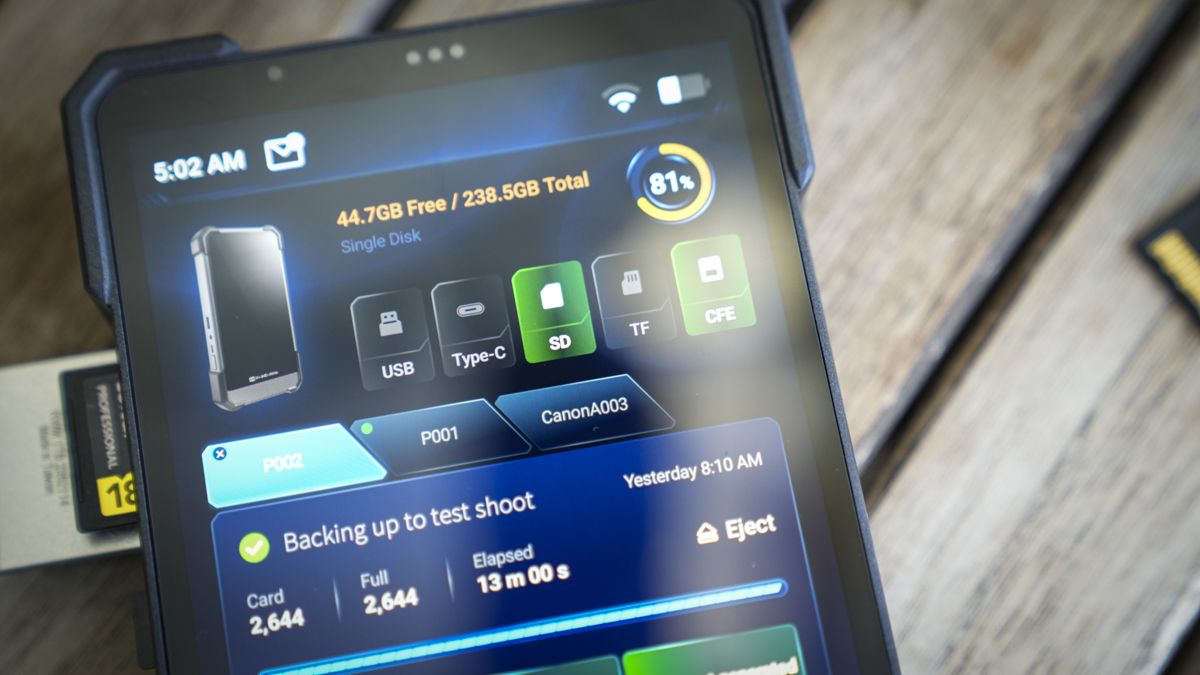
When I plugged in my first SD card, it took about 5 to 10 seconds for it to appear, ready for the files within to be either partially or fully downloaded and backed up to the internal drive. The whole process is relatively straightforward. However, you do need to set up a Lightbox before you start, which took me a while to figure out.
If you download the files directly without first creating a Lightbox, you won’t be able to navigate or manage them, so it’s an integral part of the workflow, and throughout there are small workflow points like this, but updates through the test have addressed most. It would have been helpful to have a few tooltips at the start when you first use the PixelMob, just to point you in the right direction.
However, once you get used to how the workflow goes, it’s all easy enough, and there are plenty of input options, including USB, USB-C, SD, microSD and CFexpress Type B. They’ve even included a Type B to Type A adaptor in the box, which is handy for anyone using a Sony camera.
Once you get into the flow and work out how to use Lightbox, Sequence, and Cones, things start to make sense. If you’re out in the field as a photographer or videographer looking for a decent way to back up all your image and video files, then while asset managers have been available for years, the PixelMob takes everything up a notch or two.
However, while the form and function of this device are superb for the most part, it would be good if some small workflow issues could be addressed, I’ll cover those in the Performance section.
There are also certain build-quality issues. The outer casing doesn’t feel as high quality as it could and feels more like a prototype than a finished product.
The fact that it takes a standard Sony NP-F battery at the back is superb for battery longevity. However, the battery doesn’t fit neatly and, although it has a securing lock to keep the battery in place, the fit just isn’t quite right, so it rests in place rather than locking firmly.
One thing I did like about my NP-F battery plugged into the back is that it makes a very nifty stand.
Another point is that some CFexpress Type B cards took a long time to be recognised, and a couple of the larger 1TB and 2TB models weren’t recognised at all. In those cases, I had to use a card reader plugged into the USB-C port for them to connect.
However, aside from build quality and a few workflow issues, this is a solid unit. What I really liked was that, while it comes with 256GB of internal storage ready to go, it’s in the form of an M.2 2280 module.
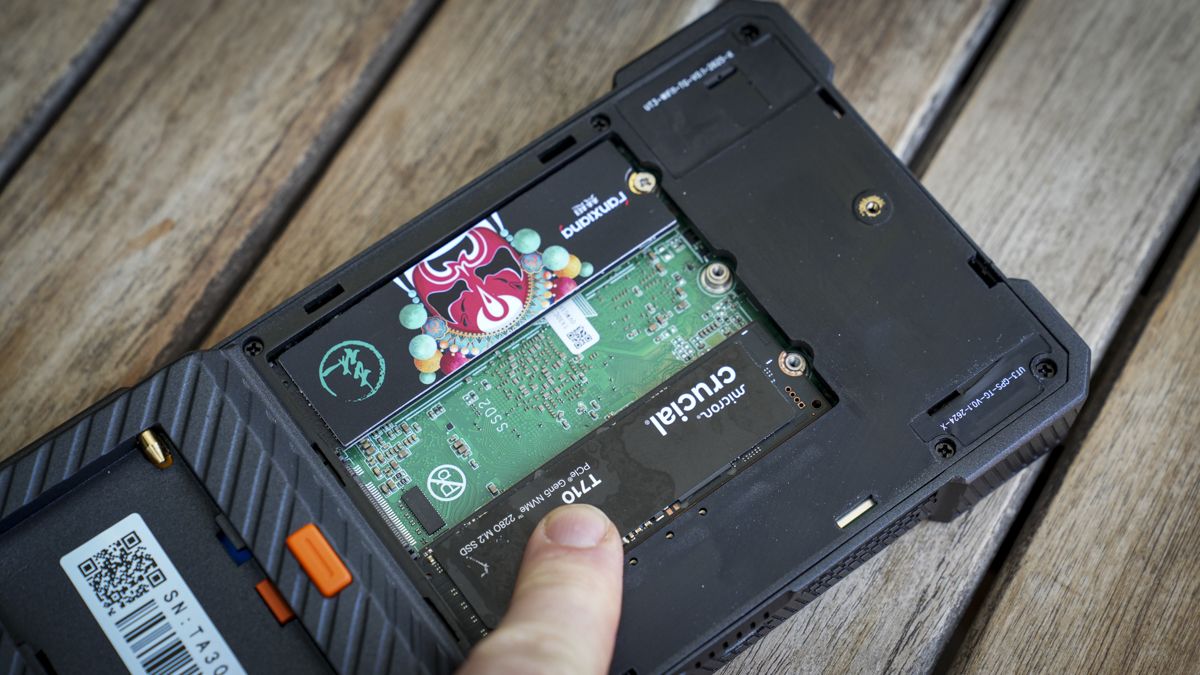
The internal storage can be upgraded, with three M.2 slots available and support for up to 8TB modules, potentially giving you up to 24TB of internal storage.
Since this is from UniDrive, it comes with UniDrive NAS software. It also has features like cloud backup, and it even has a LAN port on the back. Essentially, if you ask any photographer what they want for a backup solution on site and back in the studio, this small touchscreen box has it all.
Once the workflow issues are resolved, along with possibly slightly better build quality for the outer casing, this will be a must-have for many professional photographers or videographers.
PixelMob Portable AI Workstation: Price & availability
At present, the PixelMob has launched through Kickstarter as the PixelMob Portable AI Workstation for Creators. The full listing can be seen at Kickstarter here, while the official website is regularly updated with additional information here.
- Score: 4/5
PixelMob Portable AI Workstation: Design & build
The PixelMob’s design and build look very outdoorsy. It looks like a tough tablet or oversized mobile phone, and the screen size sits somewhere in between at seven inches with an OLED screen.
It has a brightness of 1,100 nits, which is impressive, and it runs on Android, so it supports many Android apps. In fact, you can install apps from DJI and other manufacturers if you want to connect it to a drone, your mobile phone or even your camera.
What I also liked was that you can connect it directly to the Sony A7 IV; in my case, you can use it as a professional monitoring system, essentially as a second screen and as a way to back up full-resolution files to the device.
In terms of size and weight, it measures 104 x 195 x 25mm and weighs 550g, putting it somewhere between a large mobile phone and a small tablet.
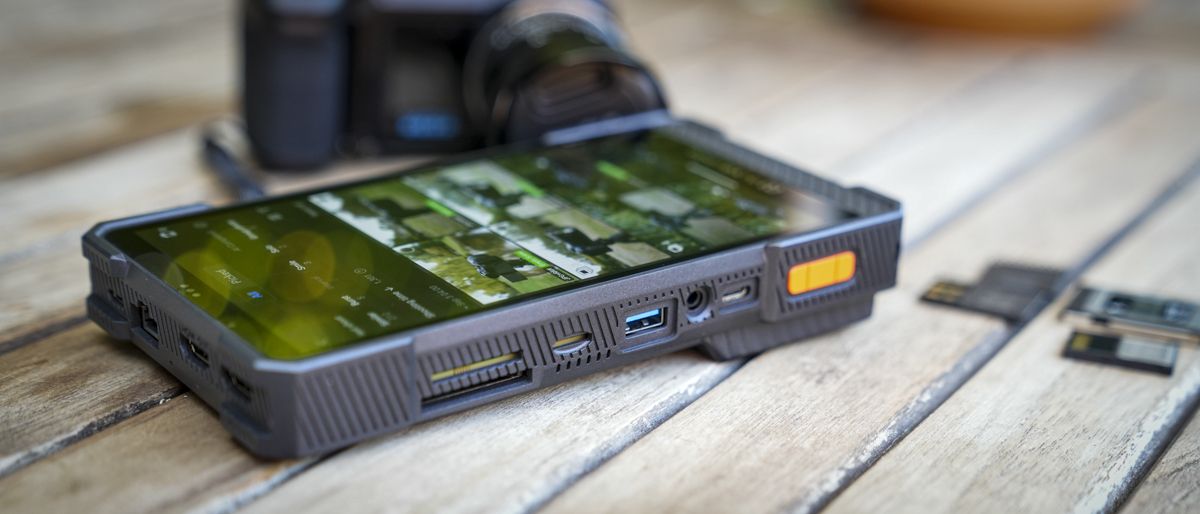
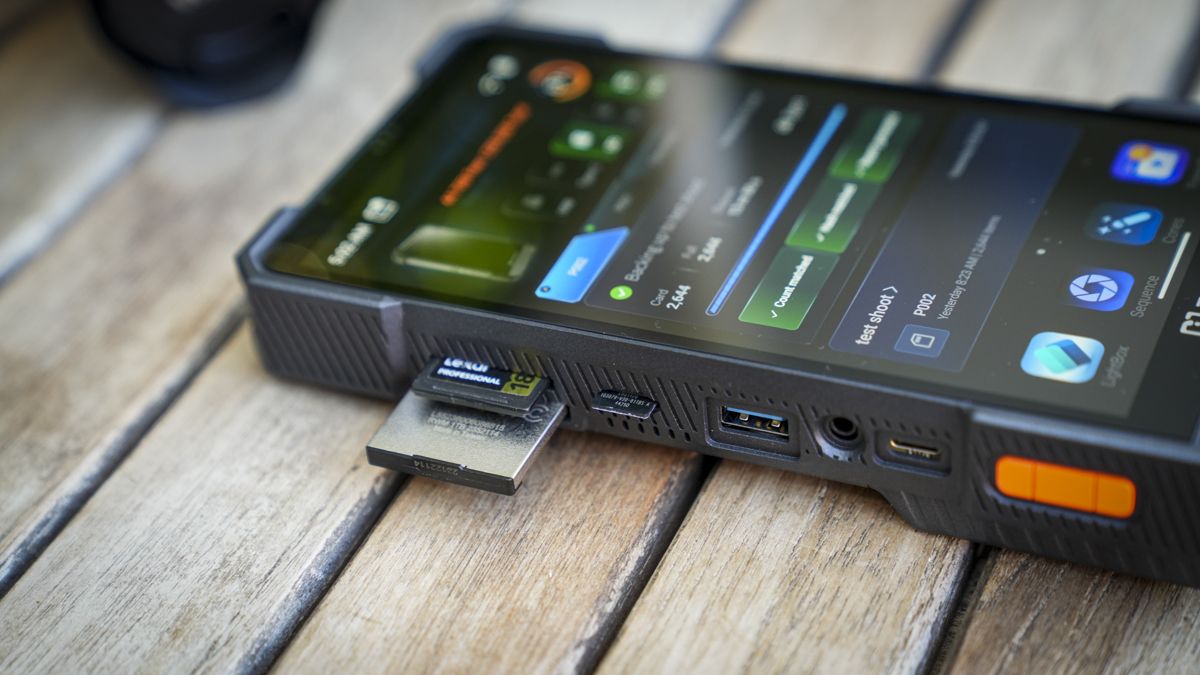
A quick look around the body shows plenty of input options, including CFexpress Type B, which enables up to 800MB/s transfer speeds, SD, microSD, USB-A, and USB-C. On the side are another USB-C port and the power button.
On the top, there are two HDMI ports, one input and one output, another USB-C port and the LAN port. On the base, there’s a connector, and on the back there’s an NP-F mount so you can add standard NP-F batteries.
For memory, it comes with 12GB of LPDDR5 RAM and 256GB of internal storage. The internal SSD can be upgraded, and there are two additional M.2 slots so you can add up to three at 8TB a piece, for 24TB of internal storage in this one small unit.
Inside, an 11,600mAh battery powers the device and, under extreme loads, this will last two to three hours, or around six hours with lighter use. In standby mode, you’ll get over a week. Then, of course, you can plug in the NP-F battery for extended working time.
When I unpacked the PixelMob, I wasn’t so impressed by the overall design. It looked OK and had the same sort of look that you expect from a tough phone or tablet, but this just isn’t backed up by the build quality.
The slightly plasticky exterior feels a little cheap and not very robust. Through the test, the outer casing did stand up to life in my backpack, although I’ll admit to being a little more careful with it than I would usually be.
I also found a few other bits and pieces as I went around the build, such as access to the back panel where you can install additional drives. It felt a little light and was held in by just one crosshead screw. If you shake the device, it also has a rattle, which is from the power button area.
Most notably, the battery holder for an external NP-F battery wasn’t quite the right fit. Still, these issues detract from what is potentially an extraordinary piece of kit.
- Design: 3.5/5
PixelMob Portable AI Workstation: Features
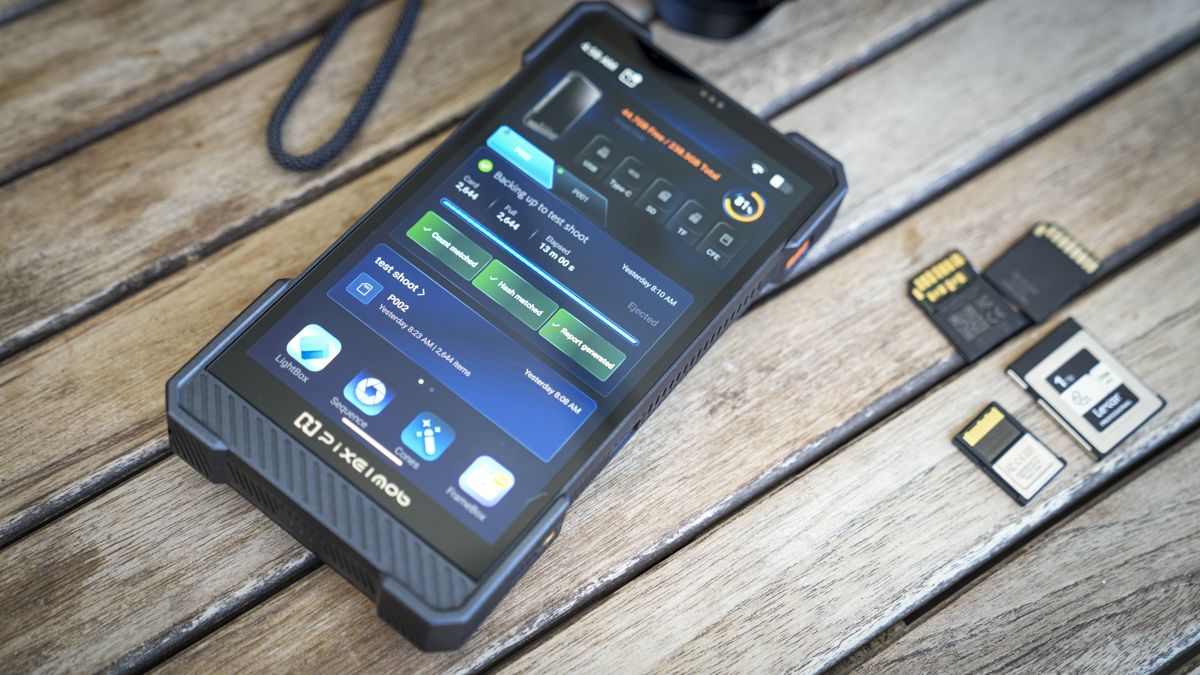
When I picked up the PixelMob, I was struck by the sheer volume of features available. Essentially, the main point is it’s designed to back up your camera storage media quickly while you’re on the move, then let you download everything to a machine or NAS as soon as you get home. But then it does more, enabling you to manage and edit the content, tether to a camera and even take control to capture different styles of images.
Thanks to the intelligent onboard software and its Android platform, it’s easy to adapt it to a professional workflow. Even if you’re a keen enthusiast, there’s plenty here to get everything organised.
So whether you’re a photographer, videographer or just somebody who needs to transfer and display data in various locations, the PixelMob is a superb option.
In terms of features, it has internal storage that lets you transfer data from cameras and other devices directly onto the unit. From there, you can edit and manage those files and assets. You can even use it as a media player with HDMI output to a larger screen.
The content you save to the device is managed by built-in AI that scans the files and offers smart subject recognition and other AI features for file organisation.
If you’re a photographer or videographer, you can use that large seven-inch screen to monitor your camera. You simply plug it in through HDMI, and you can use it as a link between your camera and larger monitoring and recording systems.
You can even use it for tethered shooting or as a video-review device. It includes a huge range of creative options that photographers and videographers will inevitably find useful.
In my testing, one of the best features for photography and video was the ability to get quick on-site previews, and I could store files on the device to edit them directly while out and about. Essentially, I had everything stored in one location that I could then use to start the file organisation.
For backups, all storage media I use is compatible with slots for CFexpress Type B cards from my Canon EOS R5 C. My two Sony A7 IVs both use CFexpress Type A, and with the adaptor, I could plug those into the CFexpress Type B port and back them up as well. It also has slots for SD UHS-II and microSD.
I could also plug in a USB-A 3.2 or USB-C device and download further data to the machine. The only issue is that the standard 256GB is quite small, so for this test I added an extra M.2 drive to expand storage by 1TB.
Inside, it has a relatively large internal battery which provides plenty of power for around two hours of heavy use. However, if you’re out and about with large cards, especially if you max out the internal storage, you’ll want a bit more battery power.
The great thing is that the company has decided to use the NP-F battery format, which is used by a huge amount of photography equipment, monitors, and other accessories. I have a stack of them in my kit bag, so they plug directly into the back of the unit, further extending battery power.
Essentially, that internal storage gives you an extra layer of protection, letting you back up all your storage media on a shoot and preview it. Where this one differs is that it also plugs directly into your camera and, with features like time-lapse video, star trails, HDR bracketing, focus bracketing, and panorama merging, gives you additional tools to use with your camera.
What’s more, you can back everything up to the cloud if and when you need.
So when it comes to features, this is one of the most feature-packed devices that I’ve ever looked at. Essentially, it looks like they’ve taken photographers’ full wish list and combined it into one small, handy-to-carry box.
- Features: 4.5/5
PixelMob Portable AI Workstation: Performance
When the PixelMob Pro arrived, I was surprised to find its size and weight somewhere between a mobile phone and a tablet, as previous devices of this type, not going back to those made by Epson, are generally rather small.
However, this is a lot more involved and getting started was all easy, if slightly time-consuming. First, after fully charging the internal battery to 100%, I ran through the updates, making sure everything was on the latest version.
The first stage of updating took around 30 minutes. Once the main bulk of the Android and hardware firmware updates finished, there were further updates for the AI processing and many of the pre-installed apps. Altogether, getting everything completely up to date can take a long time.
The system is essentially based on Android, and it’s great to see that you can install many familiar apps if you want. As you drag left on the screen, for instance, it shows a list of standard apps. While the Play Store isn’t part of the system, if you click Apps and then Third Party, you’ll see a list of pre-approved apps that have been added for download and are fully compatible with the system.
These include DJI apps, Instagram, Adobe Lightroom, Pinterest and Snapseed, amongst others. Importantly for further testing, Sony’s Monitor & Control app is also available, which lets me control my Sony A7 IV.
Hopefully, as this system develops, we’ll see equal compatibility for Canon, Nikon, Panasonic, Fujifilm and others. Once you’ve applied all updates and restarted the system, you can start copying data to it or use the PixelMob Pro as a tethering device for your camera systems.
Before I went into the main review and checked out what it could do on the performance side, I also looked at the internal storage. As standard, it comes with 256GB; however, as I flipped open the back and removed the back panel that’s secured with a crosshead screw, I noticed two additional M.2 ports.
That means that if I removed the 256GB drive that was already in and replaced it with an 8TB option, then I could potentially have up to 24TB of internal storage, which is the same amount as my NAS drive that I use in the studio.
Potentially, I could have everything from my NAS, image-wise, on this device and still have room to back up images and video on every shoot I go on.
However, 8TB M.2 SSDs are hugely expensive, so for this test I just popped in a 1TB drive alongside the 256GB drive that was already installed.
I formatted it into the system using the UniDrive application, which I’ve used in the past for previous UniDrive products. It was extremely straightforward, and I was pleased to see the app has developed along with the workflow, which is now much easier to progress through than it was when I looked at UniDrive well over a year ago.
Once the drive format was complete, I was able to start downloading my files from CFexpress cards, SD cards, and microSD cards.
The cameras I used were the Canon EOS R5 C, using CFexpress Type B cards, and the Sony A7 IV, using CFexpress Type A cards with the adaptor supplied with the device.
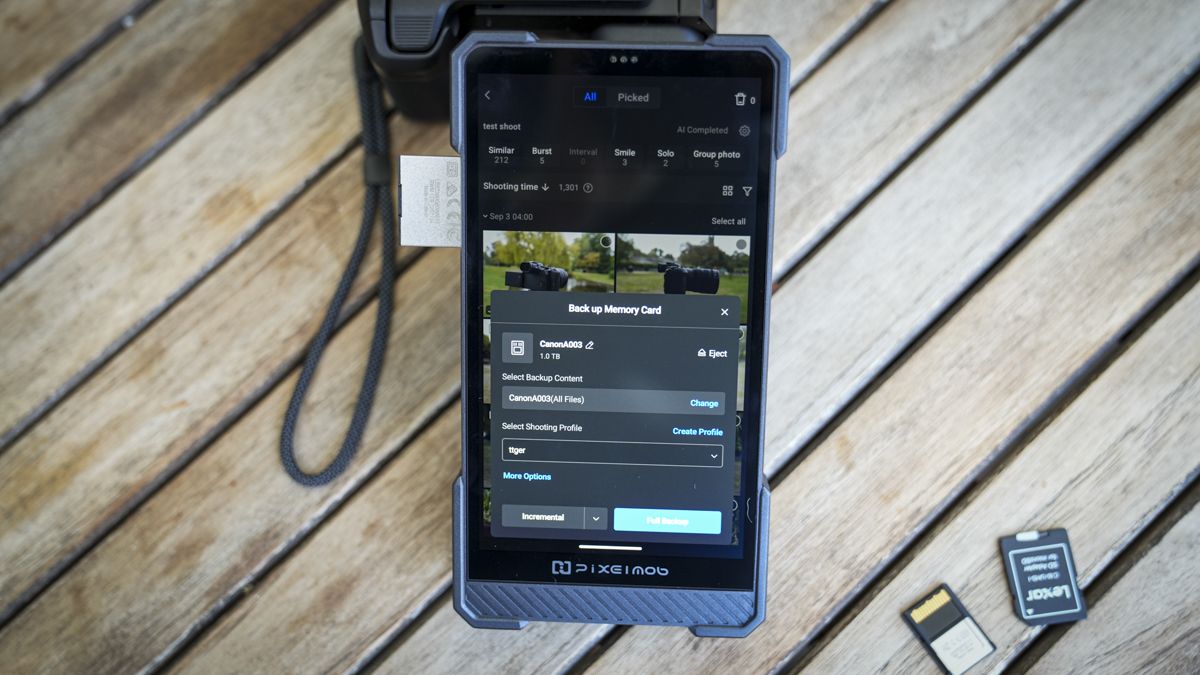
With each, you take the card out of your camera, plug it into the side of the PixelMob Pro, and after around five seconds, the system recognises the card. A simple tap will then download it to the machine. However, as I found, before you do that on the first run, it’s important to set up a Lightbox.
One of the apps at the bottom of the screen is the Lightbox app. Essentially, tap it, click New, and add your new Lightbox. Once that’s done, you can simply click to import all of the files from your SD or CFexpress card directly to that folder, and then a few interesting things happen. First, the files transfer, then the internal AI processes them. This gives you a full set of auto-tagged options and highlights whether the file is JPEG or RAW.
Clicking the folder shows a thumbnail, and the rendering is exceptionally quick. To be honest, it’s faster than when I try to review stuff using Adobe Bridge. As you scroll through, you can see each file; once you find a picture you like, just tap it, and it’ll open.
If you’ve taken several images that are very similar, say you’ve taken three iterations of the same point, then it’ll recognise those images as a burst and group them. This makes scrolling through hundreds of images, which photographers often have to do, that much easier.
It also shows you similar files. If you’ve got lots of similar files, it also does face recognition, so if there are people you know, you can add them, as you do with many online photo applications.
As you go through the different functions and features, it’ll also show you images that are overexposed or underexposed. If you want, you can go into the AI settings and switch on options such as Basic Assist, Similar Photos, portrait detection (where you can upload specific people), bird recognition, and empty-scene detection, which are all exceptionally useful.
If you do have an image, you can select it and apply star ratings and flags, check the colour, or take it through to Cones, where you can start editing the image with the built-in image editor.
Again, it gives you plenty of options and control. With some of the larger JPEG files that I started to manipulate, it can be a little slower initially to load the image. Still, once you start applying filters, each filter and adjustment applies extremely quickly. For an on-the-move solution, it’s really very slick.
Alongside the more standard enhancement edits, there’s also a whole bunch of stacking edits. So if you’ve been out taking star trails, astro time-lapses, focus or exposure sequences, which you can all do tethered, Cones gives you all of the functions and features to edit those pictures within the confines of this small box, and that is very clever, especially with the touch screen.
Likewise, alongside Cones you also have Framebox, which is essentially a built-in video editor, but personally I downloaded CapCut and utilised that as it’s a much better application.
These applications are all exceptionally clever, and many enable either a wired or wireless connection to your mirrorless camera, which I found incredibly useful and well beyond anything I’ve used before. For the most part, I used the tethered connection to the Sony A7 IV, and the initial setup took a bit of to-and-fro, but was simple enough once the right options on the camera were selected.
Connecting with the Sony A7 IV, all I needed to do was click the option that I wanted from the Sequence modes, make sure that I had a USB-C cable connecting the Sony to the PixelMob Pro and, after a few seconds, with PC Remote switched on in the camera, I was then able to see a live-stream feed directly on the PixelMob from the camera.
With simulated long exposure, I could select the capture interval and simulated exposure, then click Next and start capture. It then ran through the sequence, capturing 30 images and triggering the camera for each one. While I’ve seen small devices that enable this sort of triggering, I haven’t seen anything quite as advanced work so seamlessly.
The resulting image combines all 30 pictures the camera takes. It processes them to create a simulated long-exposure shot, something you can normally only do with an ND or variable ND attached to your camera.
You can also go through to the standard tethered shooting modes. Open the Tether app, click the camera you want to connect, then select the Lightbox. Again, it’s a good idea to create a new Lightbox. Here, you don’t get the live feed from the camera. Instead, you use the camera tethered to the box, and every time you take a picture, it instantly appears on the device, saved and ready to review.
You can keep taking pictures, and they’ll download directly from the camera to the device’s internal storage. It’s an absolutely superb option for stills. However, when you switch your camera to video, that tethered option doesn’t work, and you’ll have to go back to the more normal monitoring option and to record video you switch to another application.
Video is handled by Deck. With this mode selected, essentially the entire device becomes a monitor for the camera. You’ve got your HDMI running from the camera straight into the device, and a simple record button lets you record directly onto the PixelMob. You can record at either 5, 10, 20, 30 or 50Mbps.
It’s not comparable with an Atomos Shinobi or Ninja, but it’s a great device for creators. You can even add LUTs for different colour-grading effects at the same time, making it a really flexible device.
- Performance: 4.5/5
Should you buy the PixelMob Portable AI Workstation?
Ultimately, the PixelMob is one of the most feature-packed devices that I’ve ever looked at for photographers, videographers and creators. It enables complete image management, but it goes well beyond storing image files and becomes a bigger part of your workflow.
You can use it for tethering, video recording and, obviously, organising, editing and sharing your video and image files while you’re out and about. It combines portable storage, AI-assisted organisation, tethered shooting, image editing and video monitoring in one compact device, and the ability to expand the internal storage makes it even more useful.
Some areas still need refinement. Some workflow issues mean you have to duck in and out of various apps, and while you can do a lot, some of them are a little simplistic in certain ways. CFexpress compatibility is also inconsistent, and the outer casing feels quite plasticky compared with the quality of everything else.
However, these applications are there to support your creative media, and what the PixelMob enables is far more than any other device that I’ve seen. The system’s flexibility and how well it fits into a professional creative workflow make it an extremely capable device and one that I will be using going forward.
|
Value |
Packed feature set that goes well beyond most asset managers, but at a price. |
4 |
|
Design |
Practical design, but build needs refinement, especially the choice of plastics. |
3 |
|
Features |
Exceptional range of creative workflow tools with some small refinement needed. |
5 |
|
Performance |
Fast, with plenty of flexibility in its use from storage to capture. |
4.5 |
|
Overall |
One of the most exciting products for photographers available despite small build quality issues. |
4.5 |
Buy it if…
You need to back up media while you’re on location.
The PixelMob lets you back up CFexpress, SD, microSD, and USB storage directly to its internal storage while you’re out in the field.
You want more than a simple backup device.
You can use it for tethered shooting, image editing, video monitoring and recording, AI-assisted file organisation, and specialist shooting sequences.
Don’t buy it if…
You want a completely polished workflow.
Some workflows require you to move between different apps, and the importance of setting up a Lightbox isn’t immediately obvious when you first start using the device.
You expect premium build quality.
The outer casing feels slightly plasticky, and the rear panel and NP-F battery mount don’t feel as refined as the rest of the device.