



Elegoo M1 Ultra 3D Scanner review
Elegoo, known for its hobbyist 3D printers, is changing, and its more recent hardware shows big changes in both design and manufacturing quality. The M1 Ultra is one of the signs of this change yet, with a premium design and build that put it firmly in competition with established 3D scanning manufacturers such as Creality.
The M1 Ultra combines blue laser and infrared structured-light scanning, with five main scanning configurations that cover everything from small mechanical components and intricate objects to larger structures and even humans. The scanner offers a top accuracy of 0.02mm in the finest blue laser mode, and other standout features include full wireless operation, a 3-inch touchscreen and a swappable battery.
I’ve recently tested quite a few handheld 3D scanners, and there’s no doubt the market is getting competitive; however, whilst it’s a surprise to see Elegoo launch into the market, it’s even more surprising when I lifted the scanner from the hard case to discover the quality of the design and build.
The M1 Ultra is beautifully finished with a well-balanced design, with part rubberised grip that makes it comfortable to manoeuvre around objects. If anything, I would have liked the grip to be slightly longer, but otherwise the physical design is excellent.
The scanner connects through either wired USB or Wireless connection, with a slide switch enabling you to quickly switch between the two. This link connects you to the software, which initially guides you through the scanning process, and for first-generation software it’s all extremely well thought out.
The most important factor is scan quality, and while scanning a selection of household ornaments, mechanical components, and structural parts, it produced detailed, dimensionally accurate models that I could then export for direct 3D printing or import and edit within Blender.
One of the biggest surprises that I had during the scan process was firstly the speed and then the difference between the initial scanning preview that appeared in the software and the processed model. The preview scans looked OK, if a little rough, but after completing the scan and running the first processing stage, the detail suddenly appeared.
The Elegoo Scan software, being an early release, is surprisingly good and avoided any freezes or glitches through the testing. Scan processing typically took a couple of minutes, depending on complexity and the size, while editing and removing unwanted geometry was straightforward, partly due to my ever-increasing familiarity and use of these scanners. The usage and workflow of the software is very similar to other systems.
Wireless scanning on a scanner of this price is great to see, and I was quickly able to connect to the scanner over Wi-Fi. Once that connection was made, I found the live preview on the scanner’s touchscreen made moving around larger objects much easier.
Through the test, I did find many of the usual limits, such as scanning glossy black plastic and highly reflective surfaces still requiring scanning spray. In all cases, how easily something scans rests solely on careful preparation and marker placement. When using the scanner wirelessly, the scanner also takes over the computer’s Wi-Fi connection, preventing access to a normal workshop wireless network, which I also found was a little inconvenient.
Considering that this is Elegoo’s first 3D scanner, the speed, quality and ease of use make it feel like a product that has already undergone several iterations. This is a great option for small businesses, makers, enthusiasts, and other 3D professionals looking for a decent 3D scanner at a reasonable price.
ELEGOO M1 Ultra: Price and Availability
The Elegoo M1 Ultra has a recommended retail price of $1,699 in the US, £1,399 in the UKand €1,699. The scanner is being sold through the official website here.
Elegoo M1 Ultra: Design
One of the first things that impressed me about the M1 Ultra was the physical design and quality of the build. In contrast to their range of hobbyist 3D printers, Elegoo has clearly aimed this at a more professional level, and it feels significantly more refined than many of their previous product lines.
Elegoo’s hardware design improved dramatically, as I saw with its H1 HT filament dryer a few months back and again when it comes to finish and build quality; this feels premium and much like the quality that I’ve come to expect from companies like Bambu Lab.
Weighing in at just over half a kilogram, the M1 Ultra is relatively compact compared with several scanners I’ve used recently. The weight is well balanced for the size, and it’s comfortable to hold while moving around objects, with the grip featuring a rubberised texture that provides excellent purchase.
Grip in the scanner is especially important when scanning smaller mechanical components, where controlled movements can affect tracking and the quality of the capture. If anything, I do feel that the grip could have been slightly longer, but overall it’s comfortable enough to handle.
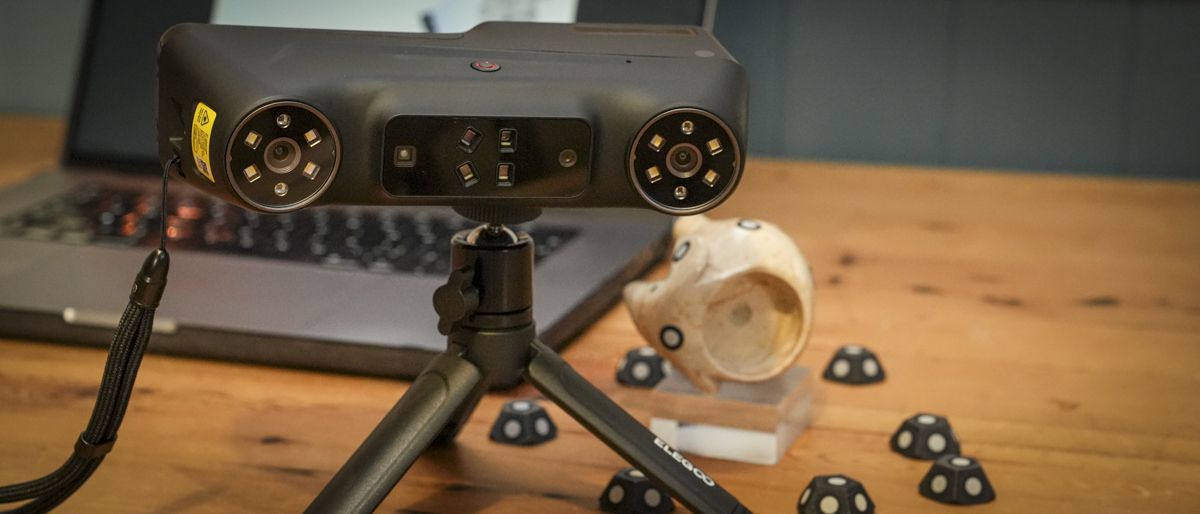
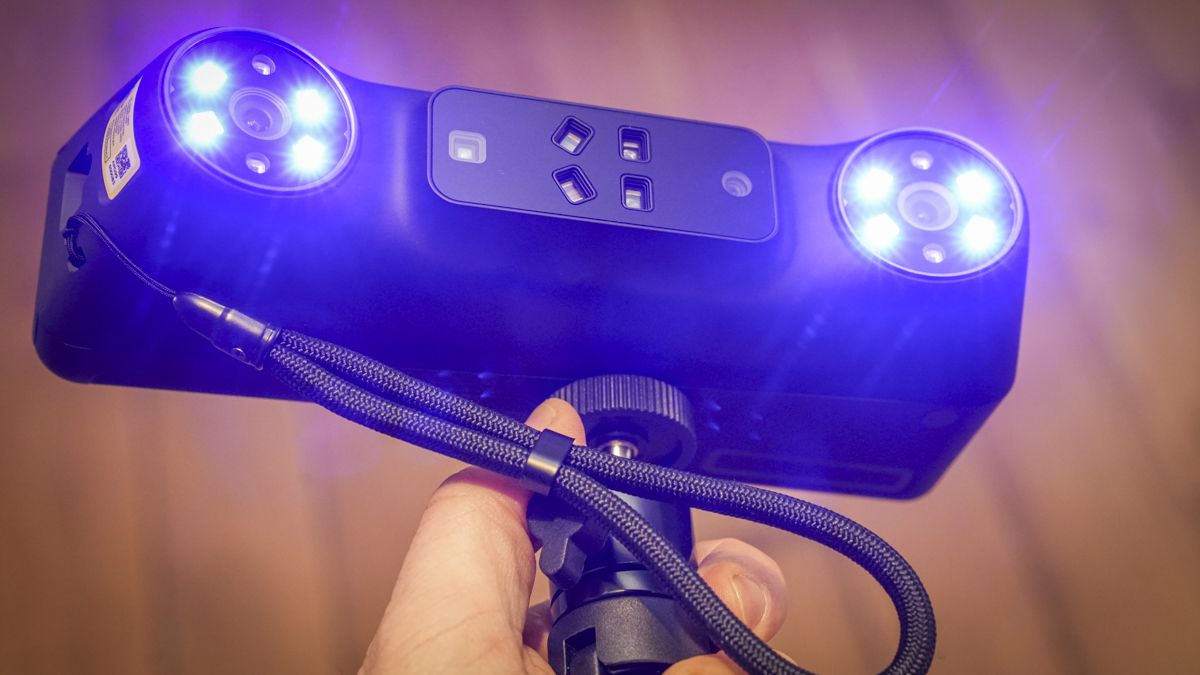
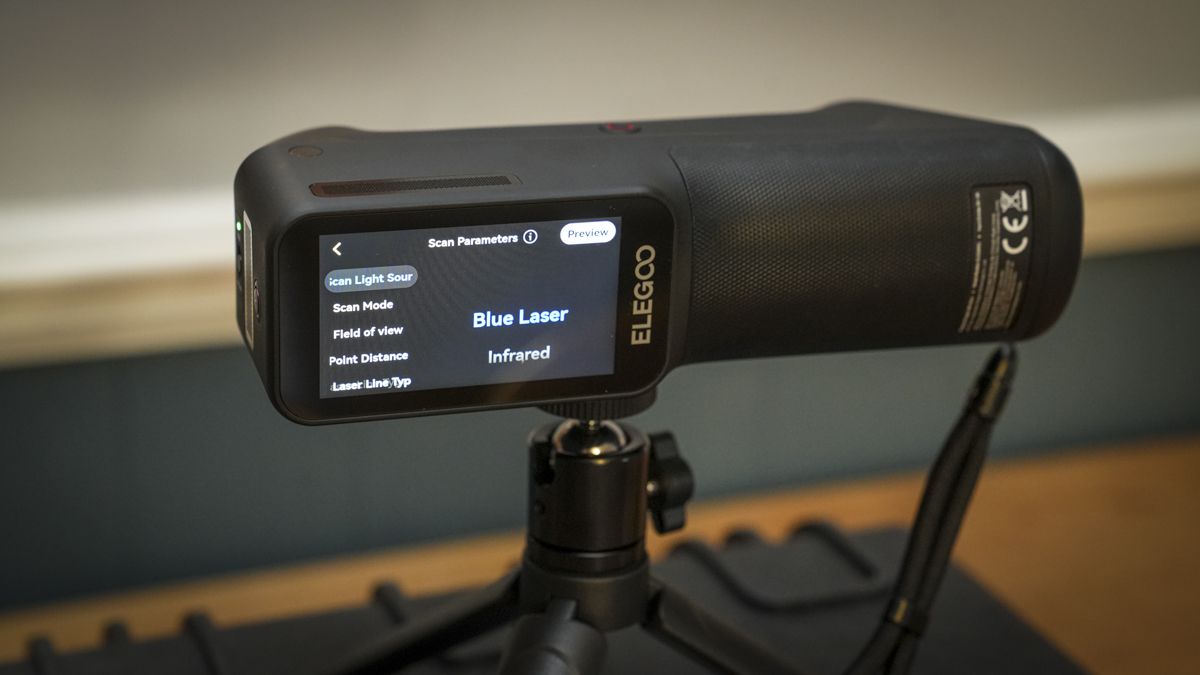
The front of the scanner features the optical system, including the laser emitters, cameras and illumination; these all look like lenses. These are neatly integrated into the casing, while the controls on the large touch screen enable you to start, pause and access the hardware settings.
The 3-inch touchscreen is more than just a monitor for settings and enables less reliance, in some situations, on using a computer screen when scanning. An example is when using the scanner wirelessly, and the display provides a live scan preview; you can also use it to adjust the exposure and zoom.
Additional hardware settings can also be accessed through the touchscreen, including Wi-Fi hotspot information, display brightness, screen rotation, language, prompt sounds and sound alerts. I also liked the fact that I could access the onboard user guide.
Not all aspects of the user interface are as polished as the hardware itself. The start and pause controls, exposure adjustment, and zoom interface use a slightly dated visual style, with gradient effects that feel more like enthusiast equipment than professional; still, the actual functionality is there.
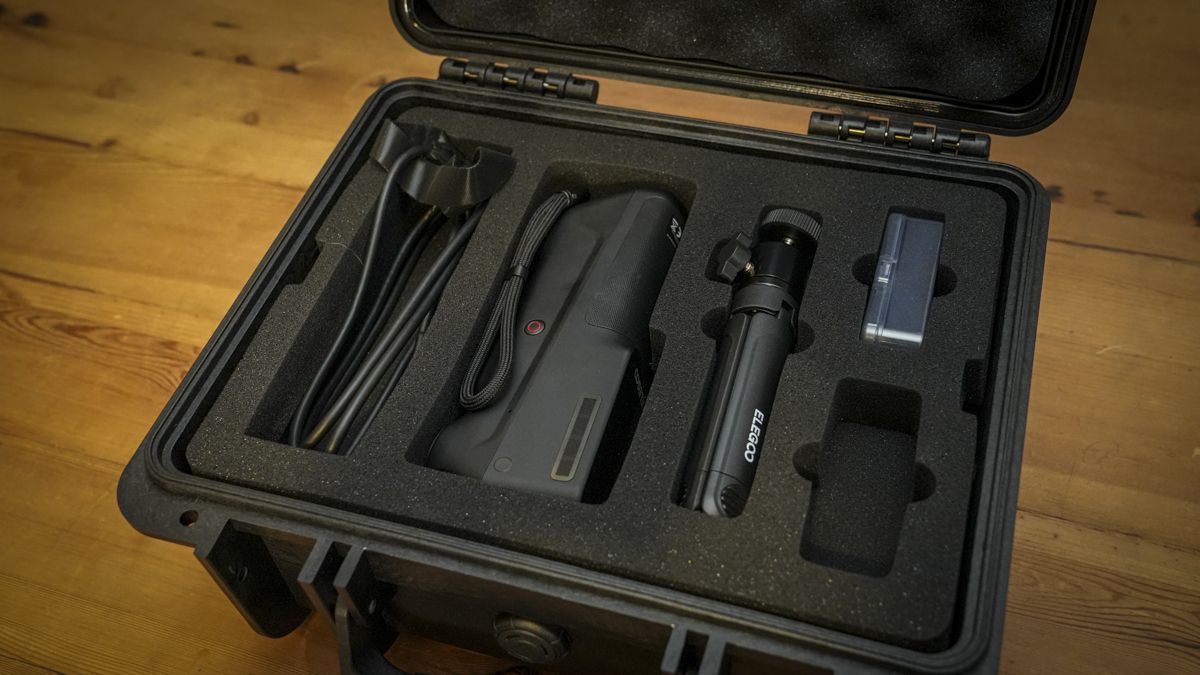
As I’ve seen with many of these scanners, it arrives in a hard carrying case which is identical in design to the one that arrived with one of the Creality scanners recently; the only difference is the logo on the front and the equipment inside.
Inside, the scanner is neatly laid out, with the scanner, batteries, calibration board, USB cable, tripod, and reflective markers. In contrast to some other scanners, the cables are kept to a minimum, with power and data handled through the same USB connection when using wired.
- Design: 4/5
ELEGOO M1 Ultra: Features
Dimensions: 191 × 50 × 76mm
Weight: 511g (including battery)
Scanning Accuracy: Up to 0.02mm (blue laser)
Scanning Modes: Five, including blue laser and infrared
Scanning Speed: Up to 100fps (USB), 60fps (Wi-Fi)
Scanning Resolution: 0.05–2mm (blue laser)
Scanning Volume: 5 × 5 × 5mm to 4,000 × 4,000 × 4,000mm
Display: 3-inch HD touchscreen
Connectivity: USB-C 3.1 and Wi-Fi 6
Battery: 4,800mAh removable
The M1 Ultra features five scanning modes designed to enable you to scan different materials, object sizes, and most importantly, levels of detail.
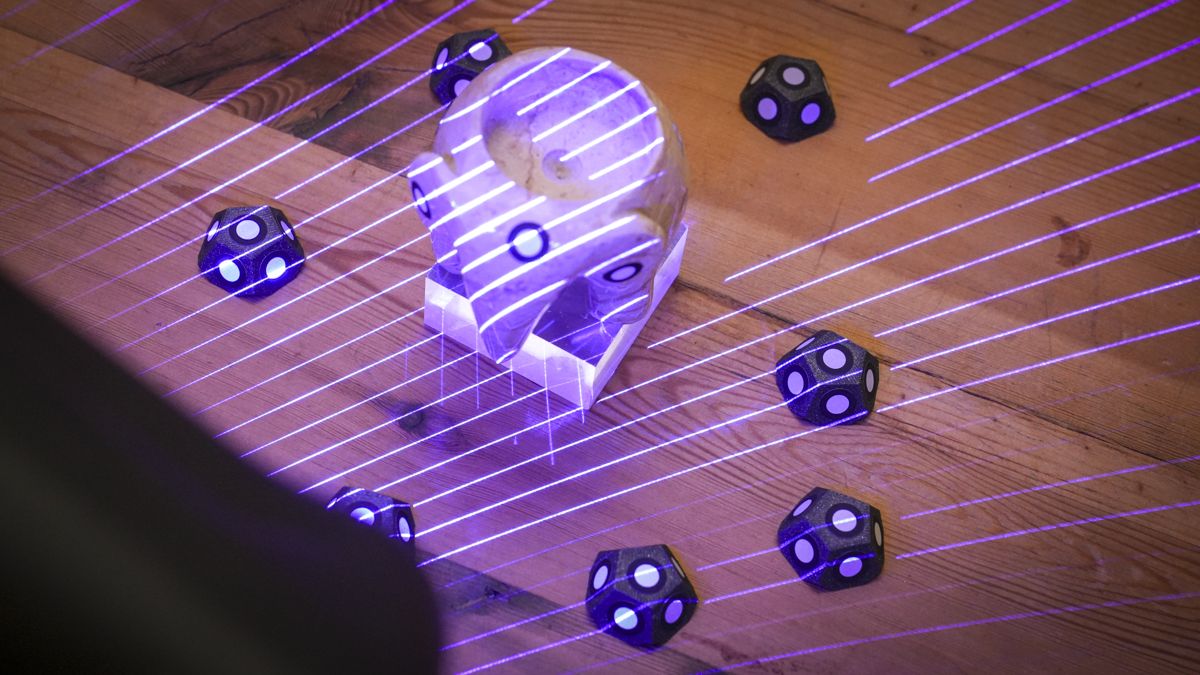
A quick run-through, and you have the 34-line crossed blue laser, which is designed for fast scanning of medium-to-large objects. The seven-line parallel mode is better suited to smaller parts and more detailed areas. The single-line configuration lets the scanner capture recessed features, deep holes, and narrow gaps.
Alongside these are infrared structured light mode, designed for larger objects, faces, and bodies, and the marker-free blue laser option for situations where reflective markers can’t be applied, such as when scanning valuable museum artefacts.
Within each mode, there are a variety of options that you can configure through the Elegoo Scan software, which offers adjustments to tracking, field of view, capture resolution, as well as the main scan quality settings.
This does take some time to get your head around, and depending on the mode, you can select marker-assisted or marker-free tracking, standard or wide-angle fields of view, global marker workflows and different laser patterns. This sounds complex, but Elegoo have created guides for each type and practice is definitely needed in order to fully understand what type and size of object needs what type of scan and settings.
The software does go some way to make things easy, with an example being the infrared scanning mode that offers dedicated presets for normal objects, faces, and bodies, plus geometry-based and texture-based tracking options.
Although the number of settings is considerable, the software is generally well organised. If you are new to 3D scanning, there’s also plenty of guides and visual prompts in the software to explain how the different options work.
- Features: 4.5/5
ELEGOO M1 Ultra: Performance
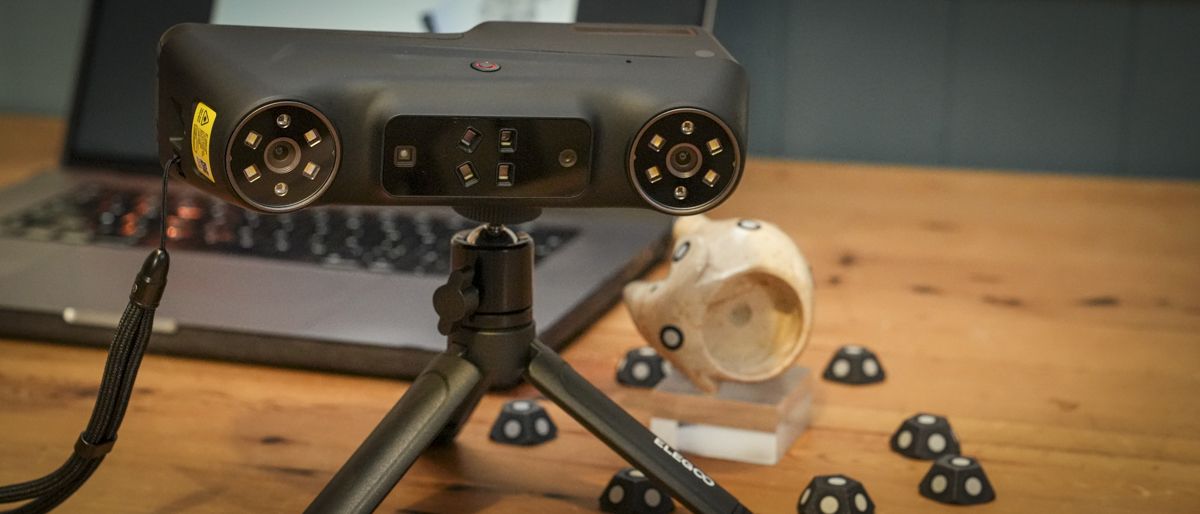
Getting started, the first step is the hardware setup. After installing Elegoo Scan on my MacBook Pro, connecting the scanner through USB and selecting the connection option, it was almost ready to go aside from a quick initial firmware update.
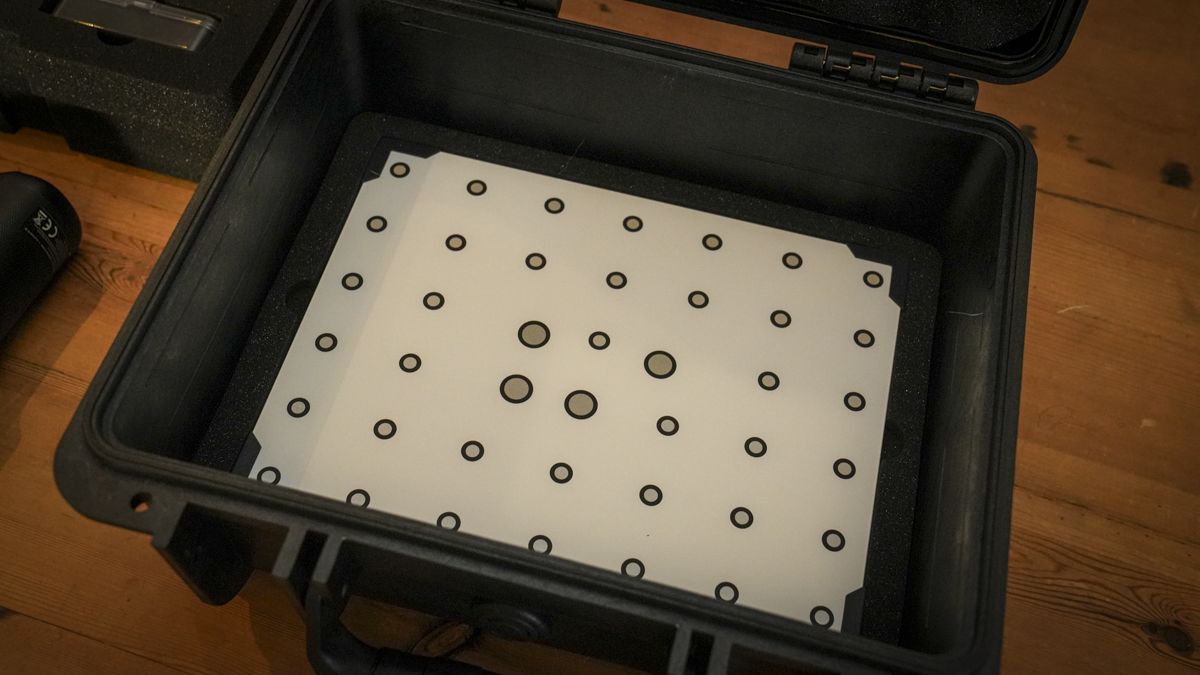
Before the scanning process could begin, I needed to run through the calibration process, and this was all surprisingly easy with the calibration chart sitting on the table and the software directing me through a series of manoeuvres with the on-screen guide. This style of calibration used to take me ages; however, here I found the process pretty quick and straightforward.
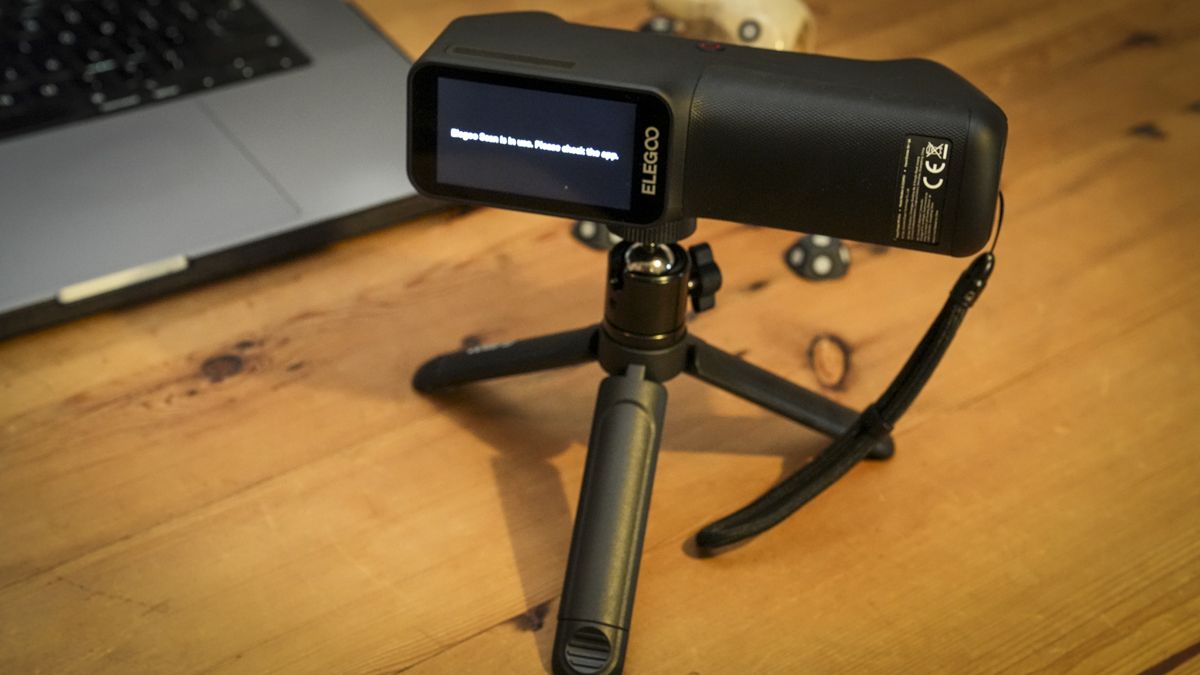
I started the test using the wired connection, but to switch to wireless there’s a small switch on top of the scanner that enables the change from USB to WLAN. As the switch is moved, the system restarts, and then you can select the scanner’s hotspot from the computer’s Wi-Fi connections, enter the on-screen password, and again it’s ready to go.
The process is easy enough, though wireless operation means the scanner creates its own Wi-Fi hotspot, which the computer must connect directly to. That meant disconnecting from the workshop Wi-Fi, and there was no option to keep both connections active at once.
This isn’t an issue during scanning, especially since the software works offline, but it becomes a bit annoying when switching between scanning and anything that I needed to do online.
When everything was set and ready, I was able to start the scanning process, starting with the 34-line cross blue laser options, which proved to scan objects at speed. Once a scan was captured, it was then possible to clean up the point cloud, as well as easily align multiple scans, and move through mesh wrapping and optimisation before exporting the finished model.
The M1 Ultra and the software effectively give you an easy scan-to-model process, and when finished, you just click export.
For testing, I scanned a variety of objects, ranging from household and office ornaments to mechanical components and structural parts that I needed to reproduce or work around when creating brackets and replacement pieces.
These included objects made from tarnished metal, matte ceramic, plastic, and wood, and the scanner performed exceptionally well across these materials. As with other 3D scanners I’ve tested, good results come down to preparation. While marker-free scanning sounds appealing, I have found that reflective markers remain the most reliable approach.
My usual setup includes a rotating platform, custom 3D-printed marker blocks positioned around the object, and adhesive reflective markers attached directly to the object wherever practical. I also use acrylic blocks to raise the object above the surface. This helps separate the subject from the surrounding environment, especially the platform it sits on, and makes the captured data easier to cut out and process.
The whole preparation process generally takes around five minutes, but it makes an enormous difference to the ease and reliability of scanning. Through the setup process, I aim to keep at least five reflective markers visible to the scanner at any one time, and this generally meant that tracking was straightforward. Scanning objects without markers proved less reliable, even with the scanner’s marker-free configuration.
Once I had properly prepared the subject, most objects took around five to ten minutes to scan from each orientation. Where possible, I tried to capture the object in just two orientations, as this made alignment quicker and generally produced better results.
The scanning process itself was fast, and it was good to see the preview build up the model. When scanning, I started off with the crossed blue laser pattern as this tended to provide the best overall coverage, and then switched to the seven-line mode when scanning more complex objects. For recessed features and deeper holes, switching to the single-line laser again helped to fill in some of the gaps.
After scanning, each model is previewed on the screen, and then you can go through the various processing modes. One point to make here is that the initial scanning is surprisingly fast and the initial point-cloud preview can look a little rough, giving little indication of the level of detail that has actually been captured. However, after you finish the scan and move through the first refinement stage, the model’s detail suddenly snaps into place, and it’s impressive.
The M1 Ultra reproduced fine surface features and dimensional accuracy extremely well. One example of the accuracy came when I scanned the car’s EV charger, with the model generated being imported into CAD software as a template for a wall-mounted holder. The finished product, while needing some refinement, fitted the EV charger perfectly.
The software is able to export OBJ files that can then be used in applications such as Blender for further editing. The range of available export formats also makes it relatively straightforward to move finished models into other design and manufacturing workflows, with 3MF and STL alongside OBJ.
Not every object’s surface was easy to capture, and as ever, while tarnished metal, wood, ceramic and plastic surfaces generally scanned very well, glossy black plastic gained mixed results.
Essentially, any surface that reflects or absorbs the scanning light causes a bit of an issue, and you can get matte scanning sprays to help with the scanning of this type of object.
Infrared scanning also produced ok results, and making sure you work in a well-lit, soft-light environment definitely helps. Again, as with any scanning mode, practice and skill often play a large part in the scanning success.
One of the main skills when scanning is alignment, essentially when you take a couple of scans of an object from different angles and then align them into one. The alignment option worked well and was surprisingly fast to process between scans, provided the reflective markers’ position was maintained. This works by completing the first scan; then the object could be repositioned to capture another side without moving any of the base markers, and the resulting scans could then be selected and aligned within Elegoo Scan.
The important point here is that the markers used as reference points must remain in the correct positions. If you move markers on the platform between scans, alignment will be much harder, and in most cases it’s easier to start again.
Mesh processing generally took a couple of minutes per scan, though the time varied considerably with the model’s size and complexity. There is still a need to remove unwanted surfaces and sections of the surrounding environment manually, but the software proved effective. Throughout testing, Elegoo Scan remained solid, with no crashes, freezes, or other problems that I have come across in the past with scan software.
For a first-generation Elegoo scanner, and with software at such an early stage of development, this level of reliability is excellent.
At the start of the test, I stuck to a wired connection, mainly due to having to check guides, etc., but over the weeks of the test I switched to the wireless option. There are some sacrifices that you make as you switch over to the wireless connection, most notably that the scanner has a lower quoted maximum frame rate; however, I didn’t notice much of a difference.
The real improvement going wireless was the ergonomic feel of scanning alongside the obvious effect of no longer having trailing wires. The main benefit is that instead of looking back at the laptop monitor to check scan progress, the wireless connection let me monitor the preview directly on the handheld scanner’s touchscreen. This made scanning far more natural, especially when moving around larger or awkwardly positioned objects.
Through the test, I found that the battery runtime was about 60 minutes, shorter than Elegoo’s advertised maximum of 90 minutes, but still enough for several typical scans, and I also discovered I could hot-swap the battery with the second battery that was included. I experimented with swapping the battery while USB power was connected, which appeared to work, though this wasn’t officially covered in the material I had.
- Performance: 4 / 5
ELEGOO M1 Ultra: Final verdict
The Elegoo M1 Ultra shows the direction that the company is moving, and this is an impressive start for them in the 3D scanning market. The arrival in the hard case, with the premium build and design, is far removed from their hobbyist machines, and it all has a decidedly higher-quality feel.
The overall ergonomics and build are excellent, and this quality of design comes across in use, with it being easy to handle and with the ability to switch between wired and wireless scanning.
As ever, there are the usual issues with the time taken to prepare the scan, but this is part of the course for all 3D scanners and the more time you put in, the better the scan you get. However, the speed of the scans that the M1 enables is impressive, and more importantly, the quality of those scans was exceptionally detailed.
The Elegoo Scan software is also well thought out, although I do feel there needs to be a little more thought on the design of both the scanning software and the touchscreen interface. The old Elegoo is still apparent in both, giving that hobbyist rather than slick professional aesthetic.
Wireless scanning is another point, and while this works exceptionally well, it does lock your computer out of the normal Wi-Fi network. There are then the usual points about scanning highly reflective or glossy surfaces, which will require scanning spray.
While good results can be achieved with what’s in the box, I would, as always, highly recommend the following: turntable, reflective markers, marker blocks, acrylic supports, and scanning spray; these are all relatively inexpensive but will save you hours.
Should you buy the Elegoo M1 Ultra?
|
Value: |
Exceptional first-generation scanner at a very reasonable price considering the alternatives. |
4.5 |
|
Design: |
Premium build and ergonomics highlight Elegoos investment in design. |
4 |
|
Features: |
Packed with scanning modes and plenty of options to refine your scanning |
4.5 |
|
Performance: |
Fast and very capable with one of the easiest workflows yet |
4 |
|
Total: |
Excellent scanner for everyone from enthusiasts to professionals. |
4.5 |
Buy it if…
You need detailed scans.
If you regularly design replacement components, custom brackets, or work with existing physical objects, the M1 Ultra delivers excellent scan quality that you can update in CAD.
You want wireless flexibility.
The integrated touchscreen, direct Wi-Fi connection, and removable batteries make the M1 Ultra much easier to manoeuvre around objects than scanners that rely on wired connections.
Don’t buy it if…
You expect instant results.
Despite the ease of use, successful 3D scanning still requires preparation, reflective markers and practice. If you expect to point the scanner at an object and instantly produce a perfect model, you’ll be disappointed.
You scan difficult surfaces.
Highly reflective, transparent or glossy black objects remain difficult to scan. While the M1 Ultra is more versatile than some alternatives, you may will need additional scanning spray and lighting to get good results.
For more crafting essentials, I’ve also tested out the best 3D printers and best laser engravers